If your Nanit Pro keeps dropping offline every time your mesh router hands the camera between 2.4 GHz and 5 GHz, the fix is almost always at the router, not the camera. The most reliable way to stop nanit pro disconnecting mesh router band switching behavior is to split your SSIDs into separate 2.4 GHz and 5 GHz networks, disable aggressive band steering, lock the Nanit to the 2.4 GHz band, and pin it to the closest mesh node. Below, we walk through every setting that matters on Eero, Google Nest Wifi, TP-Link Deco, Netgear Orbi, and Asus mesh systems, plus what to do if your camera still won't stay connected.
Why the Nanit Pro disconnects when your mesh switches bands
Top Picks
![Portable Baby Sound Machine [White Noise for Babies Kids Adults][Timer Function][12 Soothi](/aimg/images/I/612-i8iioGL._AC_SL300_.jpg)
The Nanit Pro Smart Baby Monitor is a dual-band 2.4/5 GHz Wi-Fi device, but it strongly prefers the 2.4 GHz band for stable, low-latency video streaming, especially across walls. Modern mesh systems use band steering and node steering to push clients to the “best” band based on signal strength, congestion, and load. The problem: every time the mesh forces the Nanit to roam from 2.4 GHz to 5 GHz (or from one node to another), the camera has to re-authenticate, reconnect to Nanit's cloud servers, and re-establish its video tunnel. During that handoff, parents see the dreaded “Camera Offline” banner in the Nanit app, sleep tracking pauses, and breathing-band data gaps appear in the morning report.
This is the root cause behind almost every nanit pro disconnecting mesh router band switching complaint we see. The camera itself is healthy — the router is just being too aggressive about moving it around. The good news: every major mesh platform exposes settings that can stop this behavior. The bad news: those settings are buried, named differently on each system, and a few mesh brands hide them behind support calls.
![Portable Baby Sound Machine [White Noise for Babies Kids Adults][Timer — Side-by-side comparison of top picks in this category](https://nurserygadgets.com/aimg/images/I/612-i8iioGL._AC_SL500_.jpg)
The 5-step fix that works on every mesh router
Before diving into brand-specific instructions, here is the universal sequence that resolves the vast majority of cases. Do these in order and reboot the Nanit after each change.
- Split your SSID names — create two separate Wi-Fi network names, like “HomeNet” (2.4 GHz only) and “HomeNet-5” (5 GHz only). This is the single most effective change.
- Connect the Nanit only to the 2.4 GHz SSID during setup. The Nanit app's QR-code pairing flow needs your phone on 2.4 GHz too, so toggle your phone's Wi-Fi to the 2.4 GHz network during setup, then switch back afterward.
- Disable band steering (or smart connect) on the parent network so the router can't pull the camera onto 5 GHz.
- Disable or relax fast roaming / 802.11k/v/r for the 2.4 GHz network only — aggressive roaming triggers reconnects every time signal strength fluctuates.
- Place the Nanit within 15 feet of the nearest mesh node with no metal or thick masonry between them. A weak signal makes the mesh try to “help” by re-steering the client.
Brand-by-brand mesh router settings
Eero (Pro 6, Pro 6E, Max 7)
Eero does not let you split SSIDs in the standard app, which is the single biggest reason Nanit Pro owners on Eero see chronic dropouts. Open the Eero app → Settings → Troubleshooting → My device won’t connect, and tap Create a temporary 2.4 GHz network. Pair the Nanit on that network; it will remain on 2.4 GHz even after the temporary network expires because the Nanit caches the band preference. For permanent split-SSID control, enable Eero Labs → Local DNS caching off and contact Eero support to enable the hidden “legacy 2.4 GHz SSID” toggle on Pro 6E and Max 7 hardware.
Google Nest Wifi / Wifi Pro
Google forces a single combined SSID and offers no band-steering toggle in the Home or Google Home app. The workaround: open the Home app → Wi-Fi → Devices, find the Nanit, tap it, and toggle Prioritize this device. Combine this with placing the Nanit within 10 feet of a node. If you still see disconnects, the only durable fix on Nest Wifi is to add a dedicated travel router (like a GL.iNet) bridged off the Nest, broadcasting a 2.4 GHz-only SSID exclusively for the Nanit.
TP-Link Deco (X20, X55, XE75, BE85)
Deco gives you full control. In the Deco app go to More → Advanced → Wi-Fi, then turn off Smart Connect. You'll get separate 2.4 GHz and 5 GHz SSIDs. Under Fast Roaming, disable 802.11r for the 2.4 GHz network. Under Beamforming, leave it on — it actually helps the Nanit. Finally, open the Nanit's client entry and toggle Reserve IP so DHCP renewals don't trigger a reconnect.
Netgear Orbi (RBK series, Orbi 970)
Log into orbilogin.com (not the app — the app hides these settings). Under Wireless, uncheck Enable Smart Connect. Set the 2.4 GHz SSID to something distinct, set the channel to 1, 6, or 11, and set channel width to 20 MHz (not 20/40 MHz auto). Under Advanced → Wireless Settings, disable Implicit Beamforming for 2.4 GHz only. Reboot the satellite nearest the nursery.
Asus ZenWiFi (XT8, XT12, BT10)
In the Asus router web UI, go to Wireless → General and disable Smart Connect. Under Wireless → Roaming Assistant, set the RSSI threshold to -75 dBm (a lower negative number makes roaming less aggressive). Under AiMesh → Node settings, disable Smart Connect Rule for the node nearest the nursery.
If your router can't be tamed: monitor recommendations
Sometimes the answer is a different monitor entirely. If you've tried every router fix and your Nanit Pro still drops, or if your Wi-Fi environment is hostile (apartment building with 40+ neighboring SSIDs, fiber gateway you don't control, rental property), a non-Wi-Fi monitor sidesteps the entire problem. Here are the cameras we recommend based on which problem you're solving.
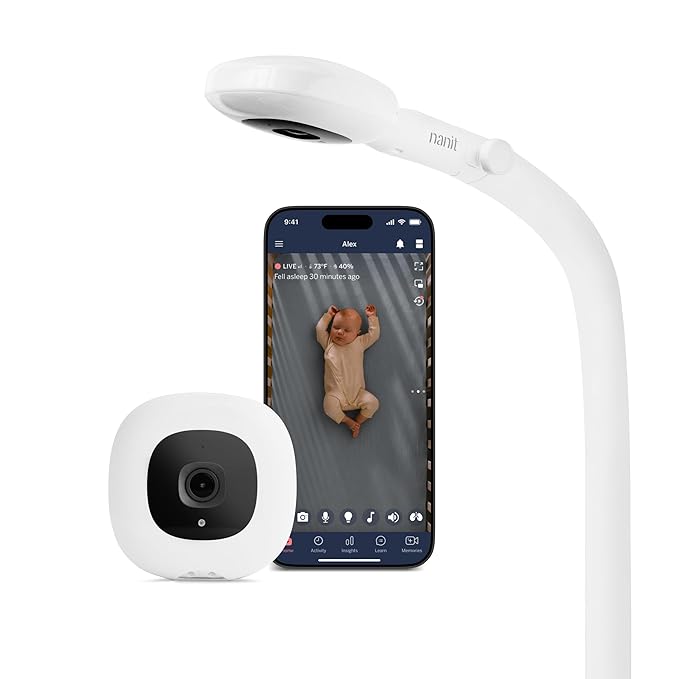
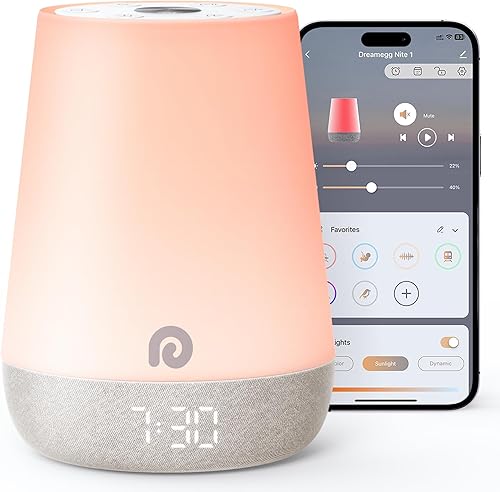
Best Wi-Fi monitor when your router is fixable: Nanit Pro Smart Baby Monitor
The Nanit Pro remains the gold standard for sleep tracking, breathing-motion monitoring (no wearable required), and overhead crib view. Once you've split your SSIDs and locked it to 2.4 GHz, it is rock solid — the disconnection problem is almost never the camera's fault. The included floor stand frees up wall space and gives you the iconic overhead angle that powers Nanit's Insights reports.
Check the Nanit Pro Smart Baby Monitor with Floor Stand on Amazon
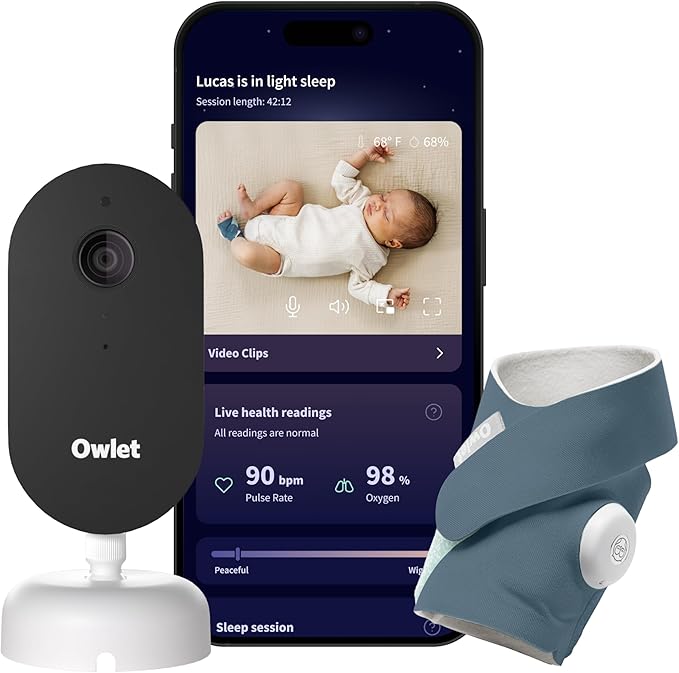
Best Wi-Fi alternative if you want a wearable backup: Owlet Dream Duo (Gen 3)
If you've decided the Nanit's reliance on Wi-Fi is a dealbreaker but you still want smart features, the Owlet Dream Duo pairs a 2K camera with the Dream Sock, which monitors heart rate and oxygen via the sock itself rather than over Wi-Fi. The sock-to-base-station link runs over Bluetooth, so even when your mesh hiccups, vitals keep flowing.
Check the Owlet Dream Duo (Gen 3) on Amazon
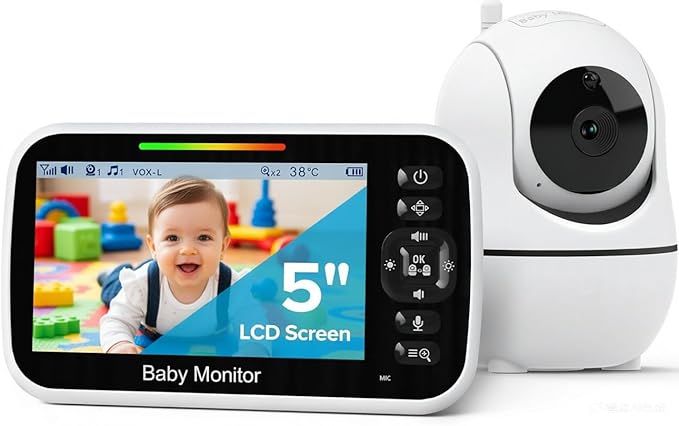
Best escape hatch when Wi-Fi is the enemy: HelloBaby No-WiFi Monitor
For nurseries where Wi-Fi simply cannot be made reliable — or for grandparents and travel — a dedicated-radio monitor like the HelloBaby uses a private 2.4 GHz FHSS link directly between camera and parent unit. No router, no app, no band switching, no cloud outage. The 30-hour battery on the parent unit and PTZ control make it a genuine primary monitor, not just a backup.
Check the HelloBaby No-WiFi PTZ Monitor on Amazon
Best two-camera no-WiFi option: HelloBaby 5-inch with 2 Cameras
If you have twins or a toddler-plus-infant setup and want to skip the Wi-Fi headache entirely, this two-camera bundle gives you split-screen viewing on a 5-inch parent unit, no app required.
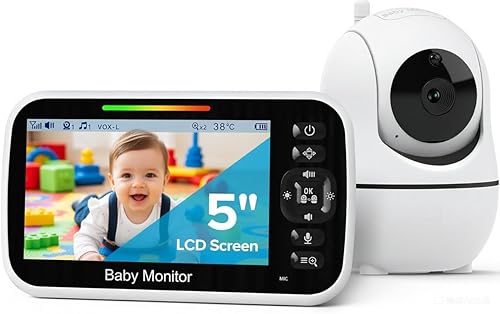
Check the HelloBaby 2-Camera Monitor on Amazon
Best budget no-WiFi pick: GoodBaby PTZ Monitor
If you just want a cheap, reliable backup to use while you sort out your router, the GoodBaby is the lowest-cost dedicated-radio PTZ camera that still has decent night vision and a useful battery.
Check the GoodBaby No-WiFi Monitor on Amazon
Quick comparison: which monitor solves your mesh problem?
| Monitor | Connection type | Affected by mesh band switching? | Best for |
|---|---|---|---|
| Nanit Pro | Wi-Fi 2.4/5 GHz | Yes — needs split SSID fix | Sleep insights, breathing tracking |
| Owlet Dream Duo | Wi-Fi + Bluetooth sock | Camera yes, sock no | Vitals backup when Wi-Fi flakes |
| HelloBaby No-WiFi PTZ | Private 2.4 GHz radio | No | Hostile Wi-Fi environments |
| HelloBaby 2-Camera | Private 2.4 GHz radio | No | Twins / two rooms, no app |
| GoodBaby PTZ | Private 2.4 GHz radio | No | Budget backup monitor |
Additional troubleshooting if disconnects persist
If you've split your SSIDs, disabled band steering, and the Nanit still drops, work through these in order:
- Check Nanit firmware. Open the Nanit app → Settings → Camera → About. Firmware older than 2026.1 has a known reconnect bug on mesh networks.
- Reserve a DHCP lease. In your router, assign the Nanit a static IP based on its MAC address. DHCP renewals on short lease times can trigger the same disconnect cascade as band roaming.
- Change the 2.4 GHz channel manually. Use a Wi-Fi analyzer app to find the cleanest of channels 1, 6, or 11, and lock the router to that channel.
- Lower the 2.4 GHz transmit power on the node farthest from the nursery. Counterintuitively, weakening the far node prevents the Nanit from trying to roam to it.
- Disable WPA3 transition mode. Force the 2.4 GHz network to WPA2-PSK only — the Nanit's Wi-Fi chip handles WPA2 more reliably during reconnects.
If you've exhausted all of this and still see the nanit pro disconnecting mesh router band switching pattern, the durable answer is a dedicated 2.4 GHz IoT SSID broadcast from a single access point near the nursery, with the rest of your house served by the mesh.
For more on building a nursery network that doesn't drop, see our guide to the best router settings for baby monitors in 2026, our deep dive on Nanit Pro vs Owlet Dream Duo, and our walkthrough on choosing a no-WiFi baby monitor.
Frequently Asked Questions
Why does my Nanit Pro keep disconnecting only at night?
Mesh routers often run scheduled optimizations, channel scans, or band re-evaluations overnight when client load is low. Eero, Orbi, and Deco all do this between 2 AM and 5 AM by default. Disable any “auto-optimize” or “nightly scan” feature in your router app, or schedule it for daytime when no one is using the monitor.
Should I put my Nanit Pro on a 2.4 GHz-only IoT network?
Yes — this is the single most reliable long-term fix. A dedicated 2.4 GHz IoT SSID with band steering off, fast roaming off, and a static channel eliminates every variable that causes the Nanit to reconnect. Most modern mesh systems (Deco, Orbi, Asus) support a separate IoT network; Eero and Nest Wifi do not, which is why those users see the most disconnect complaints.
Does the Nanit Pro support 5 GHz, and should I use it?
The Nanit Pro radio supports 5 GHz, but Nanit's own documentation recommends 2.4 GHz for range and stability. 5 GHz has more bandwidth but attenuates faster through walls and is more sensitive to roaming events. Unless your nursery is in the same room as your mesh node, stick with 2.4 GHz.
Will a Wi-Fi extender fix my Nanit disconnection problem?
Usually no — a basic range extender that rebroadcasts the same SSID actually creates more roaming events, not fewer. If you need to boost coverage to the nursery, add another mesh node from the same system, hardwire it via Ethernet backhaul if possible, and place it in the room adjacent to the nursery (not in the nursery itself).
Is the Owlet Dream Duo better than Nanit Pro for unreliable Wi-Fi?
For vitals monitoring, yes — the Owlet sock keeps reporting heart rate and oxygen via Bluetooth even when the camera loses Wi-Fi. But the camera itself is still Wi-Fi-dependent and will suffer the same mesh-band-switching issues as any other smart camera. The Owlet is the better choice if you specifically care about vitals continuity; for video continuity in a hostile Wi-Fi environment, a no-WiFi monitor like the HelloBaby is more reliable.
Can a non-WiFi baby monitor replace the Nanit Pro completely?
For pure live video and audio, yes. You lose Nanit's sleep insights, breathing-motion tracking, time-lapse memories, and phone-based remote viewing. Many parents run a non-WiFi monitor as their primary in-home viewer and keep the Nanit purely for sleep analytics — that combination eliminates anxiety about reconnects while preserving the data Nanit is known for.
Why does my Nanit reconnect successfully but lose breathing band data?
Breathing-motion analysis runs in Nanit's cloud and requires an uninterrupted video stream over a sliding window. A single reconnect of even 30 seconds breaks the analysis window, and the app marks that stretch as a data gap. Fixing the underlying band-switching disconnect is the only way to restore continuous breathing data — there is no in-app setting that can recover it.
Key Takeaways
- Choosing the right nanit pro disconnecting mesh router band switching means matching capacity and output ports to your actual devices
- Always check actual watt-hours (Wh), not just watts — runtime depends on Wh, not peak output
- Also covers: nanit pro wifi drop mesh network
- Also covers: nanit pro 2.4ghz 5ghz band steering
- Also covers: nanit pro eero google nest wifi issue
- Compare price-per-Wh across models to find the best value for your budget